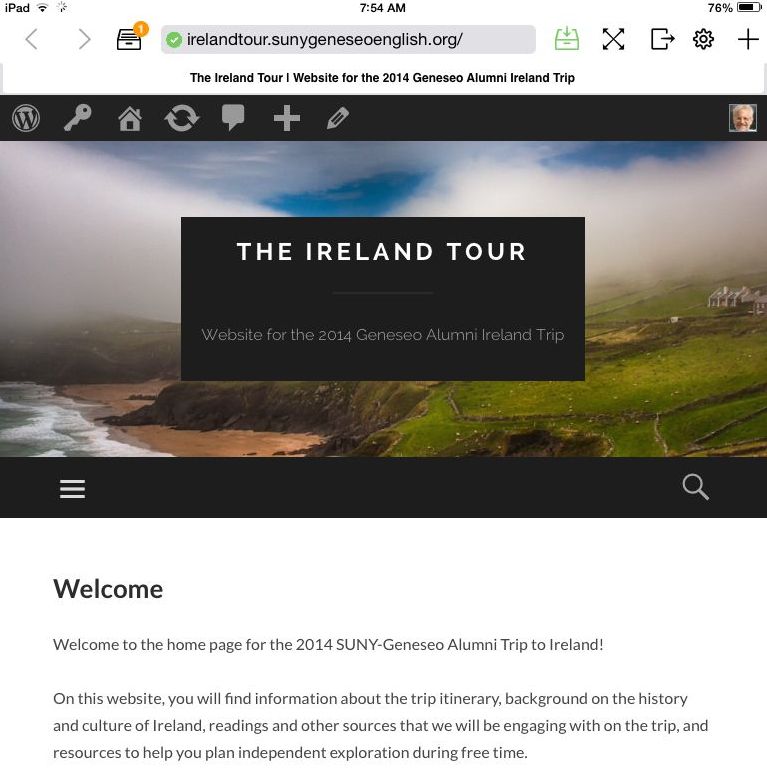
[Note: This resource was prepared for a different website, but the instructions are identical. If you are following the screenshots, just replace irelandtour.sunygeneseenglish.org with the correct web address, irishstudies.sunygeneseoenglish.org.]
You can save most of the content on this site to read offline on an iOS device (iPad or iPhone) using Offline Pages, available through the iTunes App Store. (We’ve only tested the “pro” version for this.)
With the site saved on your device, you won’t need an internet connection or data plan in order to look at photos and text (such as poetry) as the group tours historic locations.
Offline pages will not save content of other websites to which the Irish Studies website links, nor will it save offsite content embedded on the site (such as Google maps).
To save the Irish Studies website on your iOS device using Offline Pages, open the app and navigate to the site’s homepage (irishstudies.sunygeneseoenglish.org).
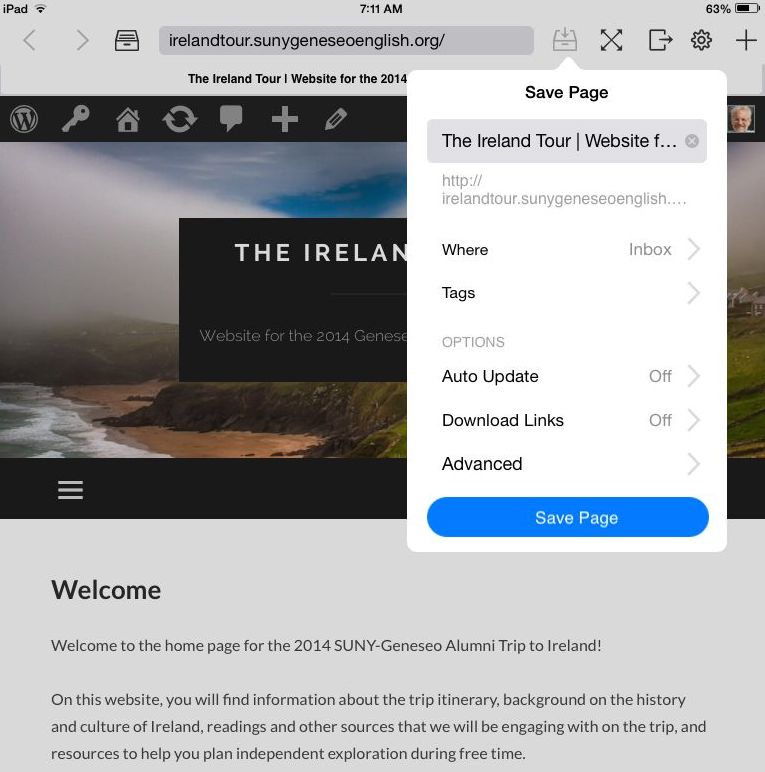
Before clicking “Save Page,” first tweak the save settings as follows.
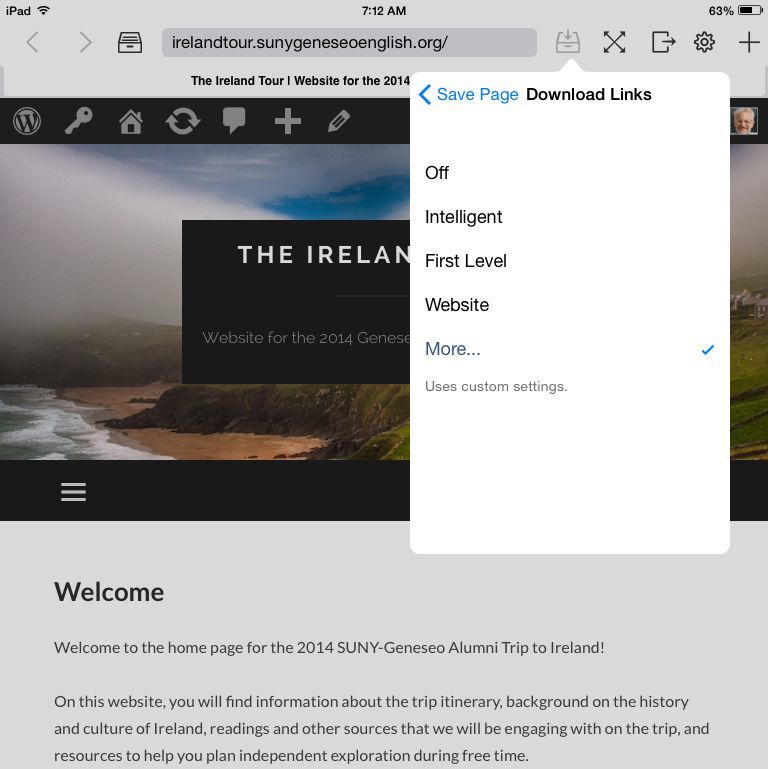
Select “Download Links” > “More.”
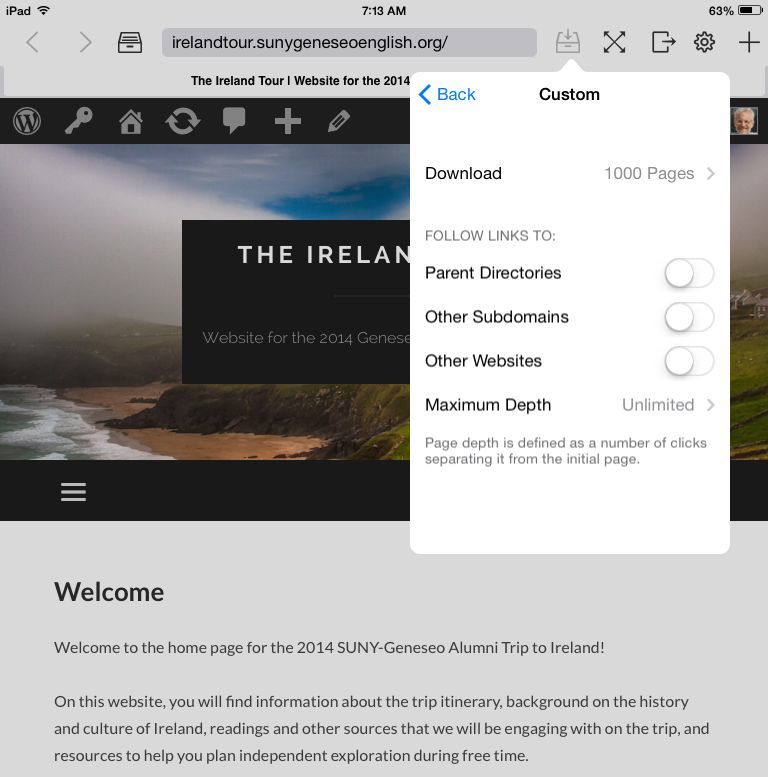
Tell Offline Pages not to follow links to parent directories, subdirectories, and other websites. Set it to download “1000 pages” at “unlimited” depth. Turn “Auto Update” off to update only on demand.
Use the “Advanced” options to optimize Offline Pages for the kind of iOS device you’re using.
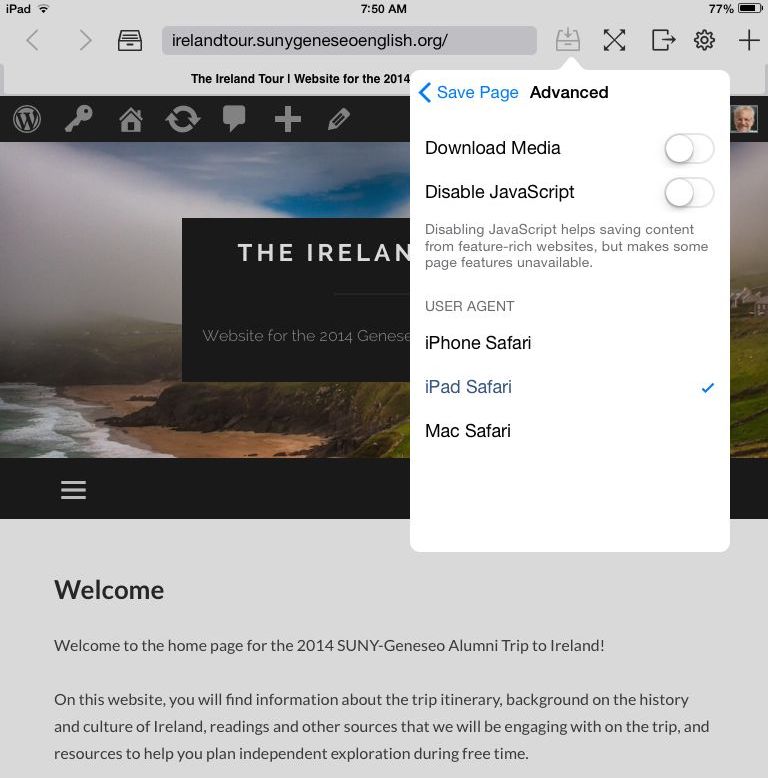
With settings adjusted, click “Save Page.” Leave your device on while Offline Pages downloads the site, which should take a little while. Once saved, the site should be available from the Inbox even when you’re not connected to the internet.